What the Best Cyber Monday Chromebook Deals Have in Common
The best Cyber Monday Chromebook deals are not the ones with the biggest percentage off — they are the ones that drop an 8GB RAM model with a 1080p IPS panel into the $200–$300 range, because those two specs decide whether a laptop still feels usable in three years. A $179 doorbuster with 4GB RAM and a 768p TN screen is not a deal; it is a locked-in compromise. Below is how the discounted classes compare, which one fits your situation, and the numbers to check before you check out.
Quick Comparison: Discounted Chromebook Classes
| Pick | Best for | Key specs | Typical Cyber Monday range |
|---|---|---|---|
| HP Chromebook Plus 14 (or equivalent Plus-tier 14-inch) | Best overall | 8GB RAM, 128GB UFS/eMMC, 1920×1200 IPS, 12–13 hr rated | $279–$379 |
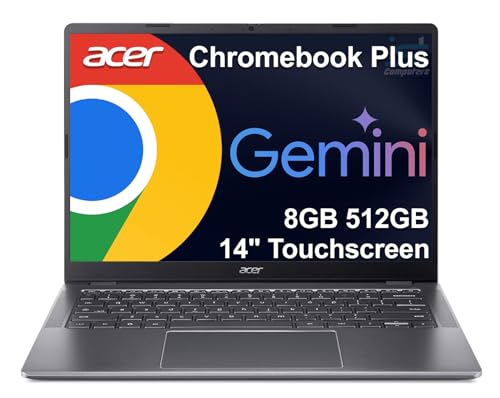
| Acer Chromebook Plus 514 (or equivalent 14-inch Plus-tier) | Best value keyboard and ports | 8GB RAM, 128–256GB SSD, 1920×1200 IPS, 12–13 hr rated | $299–$399 |
| Lenovo IdeaPad Slim 3 Chromebook 15 (or equivalent 15-inch) | Best budget big screen | 8GB RAM, 128GB eMMC, 1920×1080 IPS, 15–16 hr rated | $229–$329 |
| ASUS Chromebook Plus CX34 (or equivalent 14-inch Plus-tier) | Best for students and travel | 8GB RAM, 128–256GB SSD, 1920×1080 IPS, ~3 lb, 10–12 hr rated | $279–$369 |
| Entry 11-inch class (any brand, 4GB tier) | Only for a light second device | 4GB RAM, 32–64GB eMMC, 1366×768 TN, 10 hr rated | $129–$199 |
Ranges reflect typical holiday-week pricing across major retailers in the US; exact models rotate year to year, so match the spec column rather than the badge.
Our top picks


As an Amazon Associate we earn from qualifying purchases at no extra cost to you.
The Four Specs That Decide Whether It Still Works in 2028
8GB vs 4GB RAM
ChromeOS is light, but a browser is not. A single Google Docs tab, a 20-tab research session, and a Zoom call running at the same time will push a 4GB machine into swap, which shows up as a half-second lag on every keystroke and audio that drops out. Per the Chromebook Plus program requirements published by Google, any device carrying that badge must ship with at least 8GB of RAM — it is the one spec marker that reliably tells you a machine was designed for current workloads rather than 2019 ones. A 4GB unit is fine for one tab at a time, email, and video playback; it is not fine for a student running a class portal, a PDF textbook, and a spreadsheet together.
1080p vs 768p Panels
Resolution matters less than panel type. A 1366×768 TN panel typically delivers around 200–250 nits of brightness with narrow viewing angles — tilt the lid 20 degrees and the colors wash out. A 1920×1080 or 1920×1200 IPS panel in the same price tier usually hits 250–300 nits with full-angle color, and 1080p is the difference between fitting two windows side by side and scrolling constantly. On a 14-inch screen, 768p works out to roughly 112 pixels per inch, which makes small text visibly soft; 1080p lands near 157 ppi and reads cleanly. That is the single biggest day-to-day quality gap between a $179 Chromebook and a $279 one.
eMMC vs SSD Storage
Most budget Chromebooks use eMMC — flash memory soldered to the board with no controller cache and no upgrade path. It is not slow enough to feel broken, but copying a 2GB folder or installing a Linux container from the Settings menu takes noticeably longer than on an NVMe SSD. The practical difference shows up in capacity, not just speed: 32GB and 64GB eMMC machines leave roughly 20–45GB free after the OS, which is enough for web apps and a few downloaded files but not for offline video libraries or Android apps that cache heavily. Treat 128GB as the real floor and prefer SSD or UFS if the discount lands within $40 of an otherwise identical eMMC model.
Rated Battery Hours
Manufacturer ratings are measured on a light workload at reduced brightness, so plan on 60–70% of the claimed figure in real use. A Chromebook rated at 15 hours typically delivers about 9–10 hours of mixed browsing with the screen at 60%; one rated at 10 hours delivers about 6–7. For a school or workday that means a 12-hour-or-better rating is the threshold for leaving the charger at home. As a quick runtime cost check: a machine rated 15 hours that you charge five times a week uses roughly 45 watt-hours per cycle — about 11.7 kWh over a school year, somewhere near $1.60 at average US residential rates, which is trivial next to the convenience of not carrying a power brick.
Best Overall: The 14-Inch 8GB/1080p Class
This is the sweet spot of Cyber Monday Chromebook pricing. You are looking for 8GB of RAM, a 1920×1080 or 1920×1200 IPS screen, at least 128GB of storage, and a 12-hour-or-better rating — the combination that appears on HP Chromebook Plus 14-class machines and their direct competitors. Who it suits: a student or remote worker who keeps a dozen tabs open and wants the machine to still feel responsive after the warranty ends. Main trade-off: you will pay $100–$150 more than the entry tier, and the chassis is usually plastic. That plastic is also why it hits this price at all; aluminum bodies carry a premium that buys nothing in performance.
Best Budget Big Screen: 15-Inch Under $300
If the laptop mostly lives on a desk, a 15-inch model with the same 8GB/1080p internals is the best dollar-per-pixel play. Lenovo IdeaPad Slim 3 Chromebook 15-class machines fit this description, and their larger batteries support the highest ratings in this roundup. Who it suits: a household’s shared kitchen-table computer, or anyone who hates scrolling. Main trade-off: weight. A 15-inch Chromebook typically runs 3.5–4 lb versus 2.6–3 lb for a 14-inch, and the bigger panel draws more power under the same brightness, so the long rating narrows once you are actually watching video on it.
Best for Students and Travel: 14-Inch SSD Under 3 lb
ASUS Chromebook Plus CX34-class machines and similar 14-inch SSD models are the ones to watch if the laptop goes in a bag every day. Trade-offs are the flip side of the strengths: the faster storage and lighter chassis usually mean a slightly smaller battery, so a claimed 10–12 hours becomes about 6–8 in practice, and 14-inch keyboards drop the number pad. Ports are also thinner on the lightest models — verify you are getting at least one USB-C that supports charging and video output, because a single-cable dock setup depends on it.
Best Entry Pick (With a Caveat)
The 11-inch 4GB class exists for a reason: at $129–$199 it is the cheapest way to get a keyboard, a browser, and a nine-hour battery. Who it suits: a young student with school-managed apps only, a guest machine, or a dedicated video-call terminal. Main trade-off: it is the class most likely to feel slow before the holiday is over, and 32GB of eMMC fills fast enough that a single large offline app install can push you into storage warnings.
How to Choose: A Decision Matrix
| Your situation | Minimum specs | Skip if | Target price |
|---|---|---|---|
| Student, 3+ years of use, many tabs | 8GB RAM, 128GB, 1080p IPS, 12 hr | It has 4GB RAM, regardless of discount | $249–$349 |
| Remote worker, video calls daily | 8GB RAM, 108GB+, 1080p IPS, 12 hr | No USB-C with DisplayPort output | $279–$399 |
| Desk-bound household machine | 8GB RAM, 1080p IPS, 15-inch | It weighs over 4.5 lb and never moves | $229–$329 |
| Light email and video only | 4GB RAM, 64GB, 768p acceptable | It costs more than $199 with 4GB | $129–$199 |
| Second device for a kid | 4–8GB RAM, 64GB+, spill-resistant feel | Storage is 32GB with Android apps needed | $149–$249 |
What Wears Out First (And What to Check Before You Buy)
- Battery capacity, not battery health readouts. Most Chromebook batteries are rated for roughly 300–1,000 full charge cycles before dropping to about 80% capacity. Consistent 100%-to-0% cycling is the fastest way to get there; charging somewhere between 30% and 80% when practical extends it noticeably.
- eMMC wear and full storage. ChromeOS slows down once free space drops below about 10–15% of total capacity. On a 64GB machine that is a working floor of roughly 8GB free — easy to blow through with offline video.
- Hinges and USB-C ports. These are the two mechanical failure points on budget chassis. A loose USB-C that no longer charges reliably is the repair that most often ends a cheap Chromebook’s life.
- The Auto Update Expiration date. Every Chromebook has an AUE — the date Google stops shipping ChromeOS updates. Per Google’s published policy, models receive roughly eight years from their platform’s release. A heavily discounted 2022 model may have only a few years left, so check the AUE before buying; no discount compensates for a machine that stops getting security patches in 2028.
- Keyboard flex and keycap wear. On sub-$250 plastic decks, the most-used keys lose their legends first. If the listing names a backlit keyboard, that is usually a sign of a better-built top deck.
Frequently Asked Questions
Is 4GB of RAM enough for a Chromebook in 2026?
For one or two tabs at a time, email, and streaming video, yes — that is genuinely what the entry tier is built for. It stops being enough the moment you run a video call alongside a document and several tabs, which is the standard student or work pattern. If you expect that pattern more than a few times a week, pay the roughly $70–$120 premium for 8GB.
Do I need a 1080p screen on a Chromebook?
Not required, but strongly recommended at any screen size above 11 inches. At 14 inches, 768p looks soft and typically pairs with a dimmer TN panel, while 1080p IPS displays are brighter and readable from an angle. If the choice is 8GB RAM with a 768p screen versus 4GB with 1080p, take the RAM every time — memory is soldered and permanent, while the screen is only as good as the chip driving it.
Is eMMC storage a dealbreaker?
No, as long as capacity is at least 128GB. The speed difference between eMMC and an SSD is real but mostly shows up during file copies and app installs, not during ordinary browsing. What is a dealbreaker is 32GB or 64GB of any storage type, because ChromeOS plus a few offline apps can push free space under the threshold where the system starts to feel sluggish.
How do I convert a manufacturer’s battery rating into real hours?
Multiply the claimed figure by about 0.6 to 0.7 for mixed use at moderate brightness, and by about 0.5 for continuous video streaming. So a 15-hour rating lands near 9–10 hours of browsing and around 7–8 hours of streaming. Anything rated under 10 hours is unlikely to survive a full day unplugged.
Should I buy the cheapest Chromebook on Cyber Monday or wait?
If you need a machine now, buy the highest-spec 8GB/1080p model you can find inside your budget rather than the largest discount. Cyber Monday’s real value is the price floor on mid-tier machines, which typically drops $60–$120 from list. Waiting rarely beats that by enough to justify a semester without a working laptop.
How long will a discounted Chromebook keep receiving updates?
ChromeOS updates run to each model’s Auto Update Expiration date, which Google lists per device and generally spans about eight years from the platform’s release. A machine released in 2022 could stop receiving security updates as early as 2030, and one released in 2024 nearer 2032. Two years of extra update life is worth paying $30–$50 more for.