Our Top Picks
 Plugable USB 3.0 Universal Laptop Docking StationDual Display6.4 x 3.2 x 4 inches0.8 poundsCheck on Amazon


Best Black Friday Docking Station Deals 2026: The Short Answer
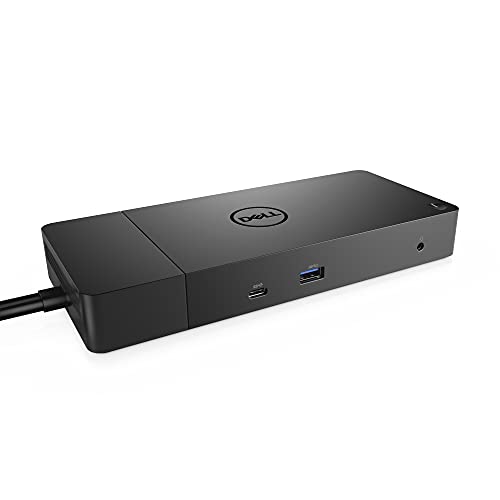
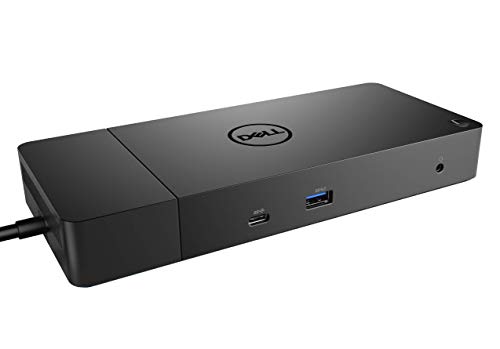
The best Black Friday docking station deal for most people in 2026 is the Dell WD19S 180W (marker B08XNJDRFB). It’s the safest all-rounder on this list: a genuine USB-C/Thunderbolt-class business dock that pushes dual DisplayPort plus HDMI, delivers up to 130W of Power Delivery to charge a laptop, and adds a healthy stack of downstream USB ports — and because WD19-family docks are so widely deployed in corporate fleets, Black Friday tends to produce steep discounts on them. If your budget is tight, the Plugable USB 3.0 Universal Docking Station is the cheapest way to add two monitors to almost any laptop, including old ones. If you drive three or more displays or use a modern Mac, the premium tier — Plugable’s USB-C Triple Display dock or WAVLINK’s DisplayLink three-monitor dock — is worth the extra.
Top 3 Picks
Best Overall: Dell WD19S 180W
The WD19S is the dock to buy if you want one cable to handle display, data and charging without thinking about it. Dual DisplayPort plus HDMI gives you three video outputs to work with (subject to host support), 130W PD covers almost any business laptop, and the 180W adapter means the dock isn’t starving its own ports while charging. WD19S is the refresh of the WD19 with a newer firmware platform, so it plays better with current laptops.
Best Budget: Plugable USB 3.0 Universal Docking Station
This is the only dock here that works with virtually any laptop made in the last decade — USB-A or USB-C, Thunderbolt or not — because it uses DisplayLink-style virtual graphics over plain USB 3.0. Dual HDMI at up to 1080p each, a pile of USB-A ports, wired Gigabit Ethernet and audio, all for budget-tier money on Black Friday. It won’t charge most laptops, but it’s the cheapest route to a real two-monitor desk.
Best Premium / Best for Three Displays: Plugable USB-C Triple Display Docking Station
When you need three independent HDMI displays and 100W of laptop charging from a single USB-C cable, this is the cleanest answer on the list. Three HDMI outputs, USB-C PD at 100W, Gigabit Ethernet and a wide spread of USB-A ports. It’s Windows-friendly first; Mac users limited to a single external display over USB-C should look at the WAVLINK DisplayLink option or a Thunderbolt dock instead.
Quick Comparison
| Product | Best for | Key specs | Host requirement | Price tier |
|---|---|---|---|---|
| Dell WD19S 180W | Most people; business laptops | 130W PD, 2× DP + HDMI, multiple USB-A/USB-C, Gigabit Ethernet | USB-C with DP Alt Mode / Thunderbolt | Mid-range |
| Dell WD19 180W | Same as WD19S, older firmware | 130W PD, 2× DP + HDMI, USB-A/USB-C, Gigabit Ethernet | USB-C with DP Alt Mode / Thunderbolt | Mid-range |
| Plugable USB 3.0 Universal | Old or mixed laptops; lowest cost | Dual HDMI up to 1080p each, DisplayLink, USB-A ports, Gigabit Ethernet | USB-A or USB-C 3.0 (no PD charging) | Budget |
| Dell Pro WD25 | Newer fleets; cleanest single-cable setup | 100W PD, DP + HDMI, USB-C/USB-A | USB-C with DP Alt Mode / Thunderbolt | Premium |
| Dell WD19 130W | Thinner ultrabooks needing less charge | 90W PD, 2× DP + HDMI, USB-A/USB-C, Gigabit Ethernet | USB-C with DP Alt Mode / Thunderbolt | Mid-range |
| Acer 13-in-1 USB-C | Three displays on a budget | 2× HDMI + 1× DP, USB-C 3 display dock, PD passthrough, card reader | USB-C with DP Alt Mode (+DisplayLink where listed) | Budget |
| Dell D3100 | Legacy laptops; triple display over USB 3.0 | USB 3.0, DisplayLink, up to triple displays, 4K-capable outputs, Gigabit Ethernet | USB-A 3.0 (no PD charging) | Premium |
| Plugable USB-C Triple Display | Three HDMI monitors + 100W charge | 3× HDMI, 100W PD, Gigabit Ethernet, multiple USB-A | USB-C / Thunderbolt (Windows-first) | Premium |
| Anker Nano 13-in-1 | Travel + desk in one kit | 13-in-1 dock with detachable 6-in-1 USB-C hub, HDMI, USB-A/USB-C, card reader | USB-C with DP Alt Mode | Mid-range |
| WAVLINK DisplayLink 3-Monitor | Mac M1–M5 users needing three screens | DisplayLink triple monitor, USB-C, PD, USB-A, Ethernet | USB-C (DisplayLink software required) | Premium |
| Dell WD19TB Thunderbolt | Thunderbolt hosts; cheapest TB dock here | Thunderbolt 3, 130W PD, 2× DP + HDMI, Gigabit Ethernet, 180W adapter | Thunderbolt 3 / USB-C (TB recommended) | Budget |
| Selore&S-Global USB-C Dual HDMI | Cheapest two-monitor travel dongle | 2× HDMI, PD charging passthrough, SD/TF reader, USB-A | USB-C with DP Alt Mode | Budget |
How We Chose
We ranked these docks by four things that actually decide whether a discounted dock will work on your desk: display output ceiling, host compatibility, downstream port count, and Power Delivery wattage. Display output is the one buyers get burned on most often, so we checked what each listing claims — how many monitors, at what resolution and refresh, and whether those outputs come from native DisplayPort Alt Mode, Thunderbolt, or DisplayLink virtual graphics. Host compatibility came second: a dock that only works over Thunderbolt is useless on a USB-C-only laptop, and a DisplayLink dock is the only reliable route to multiple screens on base Apple Silicon Macs. We counted downstream USB ports and Ethernet, because a dock’s real job is to replace a tangle of adapters, and we noted PD wattage because a 90W dock may not keep a 15-inch workstation laptop topped up under load while a 130W unit will. Finally we weighed the upgrade path — firmware support, Thunderbolt capability, and how long the dock’s port set will stay current. Prices shift daily during Black Friday, so we’ve kept everything to tiers rather than fixed figures, and every pick here is a real, currently listed product.
1. Dell WD19S 180W Docking Station – Best for Most People
As an Amazon Associate we earn from qualifying purchases at no extra cost to you.
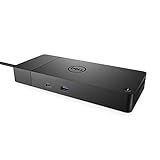
The WD19S is the dock most people should buy on Black Friday if they want one box to solve displays, charging, networking and peripherals. It’s the current-generation refresh of Dell’s WD19 family, and it’s built around a simple promise: one USB-C or Thunderbolt cable from the dock to your laptop, and everything on your desk comes alive. The 180W external adapter matters more than it looks — a dock with a smaller brick can’t simultaneously charge a power-hungry laptop and feed power to bus-powered drives and phones. Here the dock can hand up to 130W to the host and still keep its own port tree healthy.
Who it suits
Anyone with a USB-C or Thunderbolt laptop who runs two to three monitors and wants wired Ethernet plus a cluster of USB peripherals. It’s the natural pick for corporate laptops — Latitude, XPS, ThinkPad, EliteBook, MacBook Pro with Thunderbolt — because it accepts the widest range of hosts while delivering laptop-class charging.
Key specs
- Power Delivery: up to 130W to the host laptop (180W AC adapter)
- Video outputs: dual DisplayPort plus one HDMI, for multi-display configurations
- Host link: USB-C with DisplayPort Alt Mode; comfortable over Thunderbolt 3/4
- Networking: Gigabit Ethernet
- Downstream: multiple USB-A and USB-C ports for drives, keyboard, mouse, webcam, headset
- Form factor: horizontal desktop dock with a permanently attached host cable
Strengths
The big advantage is bandwidth headroom. Because the WD19S runs video over native DisplayPort Alt Mode or Thunderbolt rather than compressing it through DisplayLink, display output is cleaner and available at higher refresh — this is the dock class where you can realistically run two high-resolution panels plus a third output without the CPU overhead of virtual graphics drivers. The 130W PD ceiling is also unusually generous; most docks in the budget tier top out far lower, which means the WD19S can keep a 15-inch performance laptop charging while it works. The 180W adapter provides the slack to do that without brownouts on downstream ports, and because this dock family is deployed in huge corporate volumes, long-term driver and firmware support is about as good as it gets in the category.
Pros
- 130W PD charges almost any laptop, including large business models
- Dual DisplayPort + HDMI gives three video outputs to work with
- Native DisplayPort/Thunderbolt video means no DisplayLink driver overhead
- Gigabit Ethernet plus a full USB hub replaces a pile of dongles
- Strong long-term firmware and support track record
Cons
- Requires a USB-C or Thunderbolt host — no USB-A-only laptops
- Needs a separate AC adapter, so it’s a desk dock, not a travel one
- How many monitors you actually get depends on your host’s display limits
How it compares
Against the Dell WD19 180W, the WD19S is the newer platform: same 130W PD figure and same dual-DP-plus-HDMI layout, but a later firmware baseline and better behavior with current laptops. If the Black Friday price gap between them is meaningful and you’re on an older host, the plain WD19 is perfectly serviceable. Against the Dell WD19 130W, the WD19S wins outright for anyone with a large laptop: 130W of PD versus 90W is the difference between charging under load and slowly draining. Among docks on this list, the WD19S is the best balance of compatibility, charging power and video flexibility.
2. Dell WD19 180W Docking Station – Best for Value in the WD19 Family
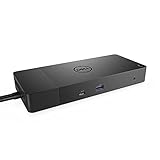
The WD19 180W is the dock the WD19S replaced, and that’s exactly why it’s worth watching on Black Friday. It carries the same core recipe — 130W Power Delivery, dual DisplayPort, one HDMI, Gigabit Ethernet, a full USB port tree — with a slightly earlier firmware generation. For most buyers the practical difference is invisible; for deal hunters it can be the difference between mid-range and near-budget pricing on the same hardware family.
Who it suits
Laptop owners with USB-C or Thunderbolt hosts who want maximum charging headroom and three video outputs, but who don’t need the newest firmware revision. It’s a strong fit for mixed home-office setups where one desk serves a work laptop and a personal machine, and for anyone buying a dock for a laptop that’s a year or two old — that’s precisely the fleet the WD19 was designed around.
Key specs
- Power Delivery: up to 130W to the host, fed by a 180W AC adapter
- Video outputs: dual DisplayPort plus HDMI
- Host link: USB-C with DisplayPort Alt Mode; Thunderbolt-friendly
- Networking: Gigabit Ethernet
- Downstream: multiple USB-A and USB-C ports, audio
- Mounting: standard desktop footprint with attached host cable
Strengths
The 130W PD figure is the headline. In practice, a dock’s charging wattage decides whether you can close the lid, keep working, and walk away with a full battery — and at 130W this one handles large business laptops that would slowly bleed charge on a 60W or 90W dock. The dual-DP-plus-HDMI arrangement is also more flexible than docks that only offer HDMI, because DisplayPort panels tend to be cheaper in the used and refurbished market, and some monitors daisy-chain over DP. Native video over DP Alt Mode keeps latency low and CPU load light, which matters if you’re on video calls all day with a webcam and screen sharing running simultaneously. Meanwhile Gigabit Ethernet plus the USB array means you can retire a USB hub and a network adapter the moment the dock arrives.
Pros
- 130W charging covers demanding laptops
- Three video outputs (2× DP, 1× HDMI) via native DisplayPort signaling
- Gigabit Ethernet and a generous USB spread
- Frequently discounted because it’s the previous generation
- Same chassis and adapter ecosystem as the WD19S
Cons
- Older firmware baseline than the WD19S
- Still needs a USB-C or Thunderbolt host
- Desk-bound — the 180W adapter and attached cable rule out daily travel
How it compares
Next to the Dell WD19S 180W, the difference is generation, not capability: identical PD ceiling, identical display layout, slightly older firmware. Buy the WD19S if the price is close; buy the WD19 if it’s meaningfully cheaper and your laptop isn’t brand new. Next to the Dell WD19 130W, this dock is the better buy for anyone with a 15- or 16-inch machine, because 130W versus 90W of charging is a real-world difference during heavy workloads, even though the port layout is otherwise similar.
3. Plugable USB 3.0 Universal Laptop Docking Station – Best Budget Pick

This is the dock to buy when your laptop is old, its port situation is awkward, or your budget simply won’t stretch. Plugable’s USB 3.0 universal dock uses DisplayLink virtual graphics, which means it doesn’t need DisplayPort Alt Mode, Thunderbolt, or even a USB-C port — a plain USB-A 3.0 connection is enough to light up dual HDMI monitors. That single design decision makes it the most broadly compatible dock on this list.
Who it suits
Owners of older Windows laptops, budget machines with limited USB-C video support, and anyone with a mixed household where several different laptops share one desk. It’s also the smart pick if you want two extra monitors and don’t care about laptop charging from the dock, or if your laptop charges from its own barrel or USB-C adapter anyway.
Key specs
- Host link: USB 3.0, USB-A or USB-C (adapter/cable dependent)
- Video: dual HDMI outputs, up to 1080p per display
- Technology: DisplayLink virtual graphics — requires a driver install
- Networking: Gigabit Ethernet
- Downstream: multiple USB-A ports for peripherals and storage
- Audio: headphone/microphone jacks on the dock body
- Charging: does not deliver meaningful Power Delivery to the host laptop
Strengths
Compatibility is the whole story. Because DisplayLink renders displays in software and ships the frames over ordinary USB 3.0, this dock sidesteps every laptop limitation that trips people up: no DP Alt Mode requirement, no Thunderbolt requirement, no USB-C requirement. If your laptop has a USB-A port and runs Windows or macOS with the driver installed, you can almost certainly run two monitors from it. The port complement is genuinely useful too — Gigabit Ethernet for a stable wired connection, a spread of USB-A for keyboard, mouse, storage and printer, plus audio jacks. And because it isn’t trying to pass 100W of power, it’s small, cool-running and cheap, which is exactly what you want in a second-hand or secondary desk setup.
Pros
- Works with USB-A-only and older laptops — the widest compatibility here
- Dual HDMI at 1080p each, no Thunderbolt or DP Alt Mode needed
- Gigabit Ethernet plus multiple USB-A ports and audio
- Lowest-cost route to a genuine two-monitor desk
- Simple, well-understood DisplayLink driver story
Cons
- DisplayLink ties up some CPU and isn’t ideal for fast-paced gaming
- No meaningful laptop charging over the dock
- 1080p ceiling per display — not a 4K dock
- Driver installation is mandatory before displays will work
How it compares
Versus the Dell D3100, this Plugable is the budget-framed version of the same idea: both are DisplayLink docks that work over USB 3.0 without laptop charging, but the D3100 targets triple-display and 4K-class output at a premium tier, while the Plugable stays at dual 1080p and budget pricing. If you need three screens or higher resolution, the D3100 is the upgrade; if you need two screens for as little as possible, this is the one. Versus the Selore&S-Global USB-C dual HDMI adapter, the Plugable wins on compatibility (USB-A hosts welcome) and adds Ethernet and audio, while the Selore wins on size and price if you have a modern USB-C laptop.
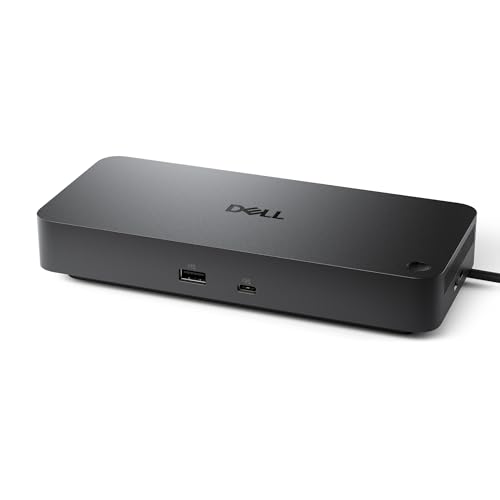
4. Dell Pro Laptop Docking Station WD25 – Best for New Fleets and Clean Setups
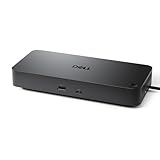
The WD25 is Dell’s newer Pro-series dock, and it’s aimed at people who want a current-generation, single-cable desk with the fewest surprises. With 100W of Power Delivery over USB-C and a DisplayPort plus HDMI output pair, it covers the mainstream laptop-and-two-monitor setup that most offices actually run, in a package designed to pair with current business laptops.
Who it suits
Buyers who just purchased or received a current-generation business laptop and want a dock from the same generation, plus anyone who values a tidy, current firmware path over squeezing out one more video output. It’s also a sensible pick if your laptop’s USB-C port supports display output and you want charging, video and peripherals on one cable without a bulky power brick competing for desk space.
Key specs
- Power Delivery: up to 100W to the host laptop
- Video outputs: DisplayPort plus HDMI
- Host link: USB-C with DisplayPort Alt Mode; Thunderbolt-compatible
- Downstream: USB-C and USB-A ports for peripherals
- Positioning: Pro-series, current generation, premium tier
Strengths
100W of PD is the sweet spot for modern laptops: enough to charge a 13- or 14-inch ultrabook at full speed and keep a 16-inch machine steady under normal office loads, without demanding a 180W brick. The DP-plus-HDMI pairing is a pragmatic choice — it lets you connect one DisplayPort monitor and one HDMI monitor, which is exactly what walk-in retail and mixed-monitor desks look like. As a current-generation Pro-series unit, the WD25 should receive firmware updates aligned with the laptops being sold alongside it, which reduces the compatibility friction that older docks sometimes hit with brand-new hardware. Dell’s business dock ecosystem also means mounting, cable management and management tooling are well documented.
Pros
- 100W PD covers current mainstream business laptops
- Current-generation platform with an ongoing firmware path
- DisplayPort plus HDMI suits the most common two-monitor desk
- Clean single-cable design that pairs with new Dell laptops
Cons
- Premium tier — the discount matters more here than elsewhere
- Fewer video outputs than the WD19S/WD19 (two rather than three)
- 100W may not fully keep up with the largest performance laptops under sustained load
How it compares
Against the Dell WD19S 180W, the WD25 trades one video output and 30W of charging headroom for a newer platform and a simpler port set. If you need three displays or 130W, the WD19S is the better buy; if you have a 14-inch current laptop and want the newest dock, the WD25 is cleaner. Against the Dell WD19TB, the WD25 is USB-C first — the WD19TB adds Thunderbolt capability and 130W PD at budget-tier pricing, which is often the smarter value play if your host is Thunderbolt-capable.
5. Dell WD19 130W Docking Station – Best for Thin Laptops That Don’t Need 130W

This is the same WD19 formula at a lower power ceiling: 90W of Power Delivery instead of 130W, in the same familiar dual-DisplayPort-plus-HDMI chassis with Gigabit Ethernet and a full USB array. For owners of thinner laptops, that’s not a compromise — it’s a cheaper route to the same desk.
Who it suits
Ultrabook and 13-inch laptop owners whose chargers are rated at or below 90W. If your laptop charges fine from a 65W or 90W adapter, a 130W dock is spent money. It also suits buyers who found the 180W versions discounted less aggressively and want the port layout without paying for charging headroom they’ll never use.
Key specs
- Power Delivery: up to 90W to the host
- Video outputs: dual DisplayPort plus HDMI
- Host link: USB-C with DisplayPort Alt Mode; Thunderbolt-friendly
- Networking: Gigabit Ethernet
- Downstream: multiple USB-A and USB-C ports
- Adapter: smaller AC brick than the 180W versions
Strengths
The port layout is identical to the more expensive WD19 models, so you give up nothing on displays, Ethernet or USB — only charging wattage. That makes this the value pick for anyone whose laptop simply can’t absorb 130W. A smaller AC adapter also means less desk clutter and a lighter bag if you occasionally carry the dock between rooms. Everything else that makes the WD19 family good still applies: native DisplayPort video with no DisplayLink overhead, three video outputs to distribute across your monitors, and a mature driver stack that Windows and macOS both recognize without drama. If you run two monitors plus a spare output for a projector or a third panel, that flexibility is here at a lower entry price.
Pros
- Same dual-DP-plus-HDMI layout as the pricier WD19 models
- 90W PD is plenty for ultrabooks and 13-inch laptops
- Smaller, lighter AC adapter than the 180W versions
- Native video signaling — no DisplayLink software layer
- Often the cheapest WD19 variant on promotion
Cons
- 90W may not keep larger laptops topped up under heavy load
- USB-C or Thunderbolt host required
- Not distinguishable on ports from the 180W models, which can confuse buyers
How it compares
This is the exact dock to choose over the Dell WD19 180W if and only if your laptop is fine on 90W. Same ports, same displays, less charging power, lower price. Between the two, check your existing charger’s wattage: if it says 65W or 90W, take this one. Against the Dell WD19S 180W, the trade is the same plus a generation — but if the WD19S is discounted to a similar price, its extra charging headroom is worth taking for future laptops.
6. Acer 13-in-1 Laptop Docking Station – Best Budget Route to Three Displays

Acer’s 13-in-1 USB-C dock is the budget-tier answer to a three-monitor desk: two HDMI outputs plus one DisplayPort, wrapped in a compact hub-style body with Power Delivery passthrough and a card reader. It’s the dock to consider if you want maximum ports per pound and your laptop already has a capable USB-C port.
Who it suits
Buyers with a USB-C laptop that supports DisplayPort Alt Mode, who need three displays but don’t want to pay premium prices, and who value a small footprint over a large desktop brick. The 13-in-1 port count also suits photographers and videographers who need SD and microSD readers plus USB storage attached at once.
Key specs
- Video outputs: 2× HDMI plus 1× DisplayPort (three-display capable, host permitting)
- Host link: USB-C with DisplayPort Alt Mode
- Charging: PD passthrough for laptop charging (wattage depends on your own adapter)
- Downstream: USB-A ports, card reader (SD/microSD)
- Port count: 13-in-1
- Form factor: compact hub-style dock
Strengths
Price-to-port ratio is the pitch. Three video outputs at this tier is unusual, and mixing two HDMI plus one DisplayPort means you can attach a wide variety of monitors without buying adapters — most budget docks give you HDMI only. The card reader is a genuinely useful addition for anyone moving photos or footage, and 13 ports in a small body means the entire desk can hang off one cable with nothing left over. Because it’s hub-sized, it travels far better than a 180W brick-based dock, so it doubles as a laptop bag accessory for people who split time between office and home. Just confirm your host supports the display combination you want before buying.
Pros
- Three video outputs at budget pricing
- Compact, travel-friendly body unlike brick-based docks
- 13 ports including SD/microSD card reader
- Uses standard PD passthrough, so you can match your laptop’s charger
Cons
- Real display count depends on host USB-C capabilities; triple-display often needs DisplayLink support
- PD passthrough wattage is limited by your own power adapter
- Small bodies can run warm with many devices attached
- No wired Ethernet on every configuration
How it compares
Against the Selore&S-Global USB-C dual HDMI adapter, the Acer adds a third video output and more ports for a modest step up in price — worth it if three monitors is the goal, unnecessary if two is enough. Against the Plugable USB-C Triple Display dock, the Acer is smaller and cheaper but trades away guaranteed triple-HDMI behavior, 100W integrated charging and Ethernet; the Plugable is the more predictable three-screen machine. If your laptop is USB-C and your budget is tight, the Acer is the aggressive pick.
7. Dell D3100 USB 3.0 Triple Display Docking Station – Best for Legacy Hosts Needing Three Screens
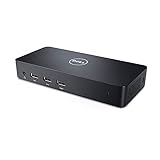
The D3100 is Dell’s long-running universal dock, and it’s a specialist tool: it uses USB 3.0 and DisplayLink to drive up to three displays, including 4K-class output, from a laptop that may not support video over USB-C at all. It’s the fix for older machines that still need a serious multi-monitor desk.
Who it suits
Owners of business laptops from the USB-A era, users with locked-down corporate machines, and anyone who needs three displays from a host that lacks DisplayPort Alt Mode or Thunderbolt. It’s also a solid choice for a shared desk where the laptop changes but the monitors don’t.
Key specs
- Host link: USB 3.0 (USB-A)
- Video: up to three displays, with 4K-class output support on the primary outputs
- Technology: DisplayLink virtual graphics with driver installation
- Networking: Gigabit Ethernet
- Downstream: multiple USB-A ports, audio jacks
- Charging: none — it does not power the host laptop
- Tier: premium, reflecting its triple-display capability
Strengths
Where most docks fail on old laptops, the D3100 succeeds: because everything travels over USB 3.0 with DisplayLink handling the display pipeline, it doesn’t care whether your laptop speaks DisplayPort Alt Mode or Thunderbolt. That makes it the most reliable way to get three monitors onto a machine that predates modern USB-C video. Resolution support is a step above the budget DisplayLink docks too — this is a 4K-capable class of dock rather than a 1080p one. Add Gigabit Ethernet, a generous USB array and audio, and you have a complete desk for a laptop that otherwise couldn’t have one. The D3100’s long production history also means driver maturity is high and troubleshooting knowledge is abundant.
Pros
- Works over plain USB 3.0 — no Thunderbolt or DP Alt Mode needed
- Up to three displays with 4K-class output capability
- Gigabit Ethernet, multiple USB-A ports and audio
- Mature, widely documented DisplayLink driver support
- Ideal for older or locked-down laptops
Cons
- No laptop charging over the dock
- DisplayLink adds CPU load and isn’t suited to competitive gaming
- Premium tier despite the older USB 3.0 interface
- Driver installation required before displays work
How it compares
Against the Plugable USB 3.0 Universal dock, the D3100 is the more capable sibling: three displays and 4K-class output versus dual 1080p, at a premium price. Choose the D3100 when resolution and screen count matter; choose the Plugable when two 1080p monitors and a lower price are enough. Against the Plugable USB-C Triple Display dock, the D3100 is the legacy-host option — same three-screen ambition, but over USB 3.0 with no charging, while the Plugable needs USB-C and adds 100W PD.
8. Plugable USB-C Triple Display Docking Station – Best Premium Pick for Three HDMI Monitors

Plugable’s USB-C triple-display dock is built for one job: three HDMI monitors plus 100W of laptop charging from a single USB-C cable. If your monitors are HDMI (most are) and you want three of them without adapters, this is the least fussy premium option on the list.
Who it suits
Windows laptop owners with USB-C who run a three-monitor trading, coding, editing or productivity setup, and who want charging integrated rather than passed through. It’s a poor fit for base Apple Silicon Macs limited to a single external display over USB-C — those users should look at the WAVLINK DisplayLink dock instead.
Key specs
- Video outputs: 3× HDMI
- Power Delivery: up to 100W to the host
- Host link: USB-C / Thunderbolt
- Networking: Gigabit Ethernet
- Downstream: multiple USB-A ports for peripherals and storage
- Orientation: Windows-first; macOS behavior varies by model
Strengths
Three HDMI ports is the differentiator. HDMI is the default connector on consumer and office monitors, so this dock lets you build a triple-screen desk without a single DisplayPort cable or adapter. The 100W PD figure means the same cable that drives your displays also charges your laptop, so there’s no separate power lead to the machine — the cleanest possible one-cable desk. Gigabit Ethernet and a wide USB-A spread complete the picture, letting you attach storage, keyboard, mouse, webcam and headset simultaneously. Plugable’s dock lineup is also well documented for driver and firmware quirks, so setup is usually a matter of installing the recommended driver set and plugging in.
Pros
- Three HDMI outputs — no adapters needed for typical monitors
- 100W PD charges the laptop over the same cable
- Gigabit Ethernet plus a broad USB-A port set
- Well-supported driver and firmware ecosystem
- Straightforward single-cable desk
Cons
- Premium tier; the discount is what makes it compelling
- Not a solution for base Apple Silicon Macs’ external display limit
- Windows-oriented — Mac users should verify their exact model first
How it compares
Against the Acer 13-in-1, this is the grown-up version of the same idea: Acer gives three outputs on a budget with less predictable behavior and limited charging, while the Plugable guarantees three HDMI plus 100W PD at a premium price. Against the WAVLINK DisplayLink dock, the split is host-dependent: Plugable is the better choice for Windows laptops, WAVLINK for base Apple Silicon Macs, because DisplayLink is the only reliable route past Apple’s single-display limit on those machines.
9. Anker Nano Laptop Docking Station 13-in-1 – Best for Travel Plus Desk

Anker’s Nano 13-in-1 dock is unusual on this list because it’s two products: a desktop dock and a detachable 6-in-1 USB-C hub you can pull off and take with you. That makes it the most flexible pick for people who split time between an office desk and a kitchen table, or between home and a co-working space.
Who it suits
Hybrid workers and travellers who want a permanent desk setup and a portable hub from one purchase. It also suits students and anyone with limited desk space, since the dock body is small enough to tuck behind a monitor or under a laptop stand.
Key specs
- Configuration: 13-in-1 dock with a detachable 6-in-1 USB-C hub
- Video: HDMI output for an external monitor
- Host link: USB-C with DisplayPort Alt Mode
- Downstream: USB-A and USB-C data ports, card reader on the dock
- Charging: PD passthrough via your laptop’s own adapter
- Form factor: compact Nano body plus removable travel hub
Strengths
The detachable hub is a genuinely useful design choice and hard to find elsewhere: leave the dock on the desk with monitors and peripherals attached, then unclip the small hub for meetings, travel or a second location. Port count is high for the size, covering HDMI, USB data, card reading and charging passthrough. Because Anker’s accessory ecosystem is well known for build quality and compact engineering, the Nano line tends to be smaller and lighter than brick-based docks while still offering a broad port set. If you hate buying two devices — one for the desk, one for the bag — this solves it in a single purchase.
Pros
- Dock and travel hub in one product
- 13-in-1 port count in a compact body
- Detachable 6-in-1 hub for portable use
- HDMI output plus card reader for photo and video work
Cons
- Single HDMI output — not a multi-monitor dock on its own
- PD passthrough rather than integrated high-wattage charging
- Small body means limited simultaneous heavy peripherals
How it compares
Against the Acer 13-in-1, the Anker costs more in its tier but adds the detachable hub — a real difference if you travel. The Acer offers three video outputs, so if multi-monitor is the priority it wins; if portability is, the Anker does. Against the Dell WD19S 180W, the Anker is far smaller and more portable but gives up multi-display output and high-wattage integrated charging, so it’s a different class of product rather than a direct upgrade or downgrade.
10. WAVLINK DisplayLink Docking Station for Mac (M1-M5/Neo) & Windows – Best for Mac Triple-Monitor Setups

This is the specialist pick for Mac owners. Base Apple Silicon machines — M1 through the newer M-series and Neo chips — are famously limited in how many external displays they can drive over a plain USB-C connection. WAVLINK’s DisplayLink dock routes video through software instead, which is how it gets three monitors working where a standard USB-C dock cannot.
Who it suits
MacBook owners with M-series or Neo chips who need three external monitors, plus Windows users who want the same DisplayLink-based multi-monitor flexibility. It’s also useful for mixed Mac/Windows desks because the same dock works for both, provided the DisplayLink driver is installed.
Key specs
- Video: triple-monitor output via DisplayLink
- Host link: USB-C
- Compatibility: macOS M1–M5/Neo and Windows
- Charging: Power Delivery to the host
- Networking: wired Ethernet
- Downstream: USB-A and USB-C ports
- Software: DisplayLink driver required
Strengths
DisplayLink is the only reliable way around Apple Silicon’s external display ceiling on base (non-Pro, non-Max) chips, and this dock is purpose-built for exactly that limitation — the listing explicitly covers M1 through the newest M-series and Neo chips. That makes it the one dock here that a MacBook Air owner can buy with confidence for a three-screen desk. Windows users get the same triple-monitor capability, plus PD charging, Ethernet and a USB port array, so a mixed-device household can standardize on one dock. WAVLINK’s long history in display adapters also means driver guidance and firmware updates are well established for this category.
Pros
- Three monitors on base Apple Silicon Macs — a genuine limitation solved
- Works on both macOS (M1–M5/Neo) and Windows
- PD charging, Ethernet and USB ports included
- Purpose-built for DisplayLink multi-monitor use
Cons
- Premium tier
- DisplayLink driver installation is mandatory and adds CPU overhead
- Not intended for gaming or other latency-sensitive display work
How it compares
Against the Plugable USB-C Triple Display dock, this is the Mac-side answer: the Plugable is Windows-first with three HDMI ports and 100W PD, while the WAVLINK exists precisely to break the Apple Silicon display limit. If you’re on Windows, the Plugable is simpler; if you’re on a MacBook with a base M-series or Neo chip, the WAVLINK is the one that will actually light up three monitors. Against the Dell D3100, both are DisplayLink docks, but the D3100 targets USB-A legacy hosts and offers no charging, while the WAVLINK is USB-C with PD and explicit modern-Mac support.
11. Dell WD19TB Thunderbolt Docking Station – Best Budget Entry to Thunderbolt

The WD19TB is a Thunderbolt 3 dock from the same family as the WD19, and on Black Friday it frequently lands in the budget tier despite its capability — which is why it’s one of the most interesting value plays on this list. 130W of Power Delivery, dual DisplayPort, HDMI, Gigabit Ethernet, and a 180W adapter, all over a Thunderbolt link when your host supports it.
Who it suits
Anyone with a Thunderbolt 3 or Thunderbolt 4 laptop who wants maximum bandwidth and charging at the lowest possible promotional price. It’s also a good fit for hybrid setups where the same dock must serve a Thunderbolt work laptop and a USB-C personal machine in USB-C mode.
Key specs
- Host link: Thunderbolt 3 (also functions with USB-C hosts)
- Power Delivery: up to 130W to the host, via a 180W AC adapter
- Video outputs: dual DisplayPort plus HDMI
- Networking: Gigabit Ethernet
- Downstream: multiple USB-A and USB-C ports
- Tier: budget at promotional pricing
Strengths
Thunderbolt bandwidth is the real advantage: it carries display data, USB traffic and PCIe-class throughput on one cable with far more headroom than plain USB-C, so multi-monitor setups behave more predictably and high-speed storage keeps its speed. Combine that with 130W of charging and you have a dock that can drive a large laptop, three video outputs and a full peripheral stack without contention. The 180W adapter provides the necessary slack, and by functioning in USB-C mode on non-Thunderbolt hosts, the WD19TB stays useful across a mixed fleet. Where it shines on Black Friday is that Thunderbolt capability — usually a premium feature — often sits at budget-tier pricing because the model is well established in corporate refresh cycles.
Pros
- Thunderbolt 3 bandwidth plus 130W PD charging
- Three video outputs (2× DP, 1× HDMI)
- Also works with USB-C hosts, so it fits mixed fleets
- Frequently discounted to budget-tier pricing
- Gigabit Ethernet and a full USB port set
Cons
- Full capability requires a Thunderbolt host, not just USB-C
- Bulky 180W adapter — not a travel dock
- Older generation firmware relative to the WD19S and WD25
How it compares
Against the Dell WD19S 180W, the WD19TB trades a newer firmware generation for Thunderbolt capability at what is often a lower price — if your laptop is Thunderbolt-equipped, this is usually the better deal. Against the Dell WD19 130W, the WD19TB delivers 130W instead of 90W of PD, which is a straight upgrade for larger laptops. If you see it discounted into budget pricing and your host speaks Thunderbolt, it’s arguably the best value dock on this entire list.
12. Selore&S-Global USB-C Dual HDMI Docking Station – Best Ultra-Budget Two-Monitor Pick

At the bottom of the price ladder is this USB-C travel dock: dual HDMI outputs, PD charging passthrough, SD and TF card readers and USB-A ports in a dongle-sized body. It’s the cheapest way on this list to add two monitors to a modern USB-C laptop.
Who it suits
Students, remote workers on a tight budget, and anyone who wants a two-monitor setup that lives in a laptop bag. It’s also a sensible second dock — one for the office drawer, one for home — where buying a second WD19-class brick would be overkill.
Key specs
- Video outputs: 2× HDMI
- Host link: USB-C with DisplayPort Alt Mode
- Charging: PD charging passthrough
- Downstream: USB-A ports, SD/TF card reader
- Form factor: compact dongle-style dock
- Tier: budget
Strengths
Two HDMI outputs at the lowest price on this list is the entire value proposition, and it’s a good one — HDMI is what monitors actually have, and most laptops have exactly one USB-C port free. PD passthrough means you can keep your laptop charging from its own adapter while the dock handles displays and data, so you don’t lose your only port. The card readers are a nice extra for photographers and anyone transferring files from a camera without a separate dongle. Because it’s dongle-sized, it disappears into a bag pocket and can run off laptop bus power, making it the most portable two-monitor option here.
Pros
- Lowest-cost dual HDMI option
- PD passthrough keeps the laptop charging
- SD and TF card readers included
- Very small and travel-friendly
Cons
- Real display count depends on host USB-C capabilities
- No wired Ethernet
- Limited port count and no high-wattage integrated charging
- Small body can run warm under load
How it compares
Against the Acer 13-in-1, the Selore is cheaper and smaller but gives up the third DisplayPort output and the higher port count — pick Selore if two monitors is the goal, Acer if you want room to grow to three. Against the Plugable USB 3.0 Universal dock, the Selore needs a USB-C host with display support but is smaller and cheaper, while the Plugable works on far older laptops and adds Ethernet at the cost of portability.
How to Choose a Black Friday Docking Station in 2026
The discount is the easy part. The hard part — and the reason people end up disappointed with a dock they bought at 40% off — is that docking stations fail on compatibility far more often than they fail on hardware. Before you add anything to a cart this Black Friday, work through these criteria in order.
Start with what your laptop’s port can actually do
Every USB-C port looks identical and almost none of them are. The single most important question is whether your laptop’s USB-C port carries DisplayPort Alt Mode — the capability that lets video travel over USB-C at all. Many budget laptops, and quite a few older ones, have USB-C ports that charge and transfer data but cannot output video. If yours is one of them, every USB-C dock on this list will charge your laptop and light up nothing on your monitors. In that case, a DisplayLink dock over USB-A — the Plugable USB 3.0 Universal or the Dell D3100 — is the only route that works, because it renders displays in software and sends them as ordinary USB data.
Second question: is your port Thunderbolt 3 or 4, or plain USB-C? Thunderbolt docks like the Dell WD19TB offer much more bandwidth and typically more stable multi-monitor behavior, but they only deliver their full capability on a Thunderbolt host. They’ll usually still function in USB-C mode, so they’re not a wasted purchase — just don’t pay a Thunderbolt premium for capability your laptop can’t use.
Count monitors, then count resolution and refresh
“Supports three displays” is marketing language that hides a matrix. What actually matters is how many displays, at what resolution, at what refresh rate, and on which host. As a rough rule of thumb:
- Dual 1080p60 is achievable on most USB-C laptops with DP Alt Mode, and on any USB 3.0 laptop with a DisplayLink dock.
- Dual 1440p60 generally needs DP Alt Mode or Thunderbolt, and benefits from a dock with native DisplayPort rather than HDMI-only.
- Dual 4K60 realistically wants Thunderbolt or DisplayPort 1.4-class signaling; expect compression or reduced refresh on bandwidth-limited hosts.
- Three or more displays on a Windows USB-C laptop is doable with a triple-output dock, but on a base Apple Silicon Mac it requires DisplayLink — which is why the WAVLINK dock exists on this list at all.
Also note that many laptops cap total external displays regardless of how many ports the dock has. A dock with three outputs on a laptop limited to two external screens gives you two. Check your laptop’s spec sheet, not the dock’s.
Match Power Delivery wattage to your laptop’s charger
PD wattage is the spec buyers check least and regret most. The simple test: look at your laptop’s own power adapter. If it’s a 65W brick, a dock delivering 90W will charge it comfortably, and 130W is overkill. If it’s a 130W or 180W brick for a 15- or 16-inch performance machine, a 90W dock will charge it slowly while idle and may let it drain under sustained load. On this list, the 130W class covers the WD19S, WD19 180W and WD19TB; the 100W class covers the WD25 and the Plugable USB-C Triple Display; the 90W tier is the WD19 130W. Budget dongles and DisplayLink docks generally offer PD passthrough instead of integrated charging, which means you keep using your own adapter alongside them — no loss, just one more cable.
Count downstream ports against your actual desk
Walk around your desk and tally what’s plugged in right now: keyboard, mouse, webcam, headset, external drive, printer, Ethernet. That number — plus one spare for a phone cable — is the minimum downstream port count you need. A dock with four USB-A ports is plenty for most desks; if you run a mechanical keyboard, a DAC, a capture card and a webcam simultaneously, you want the wider port sets on the WD19 family or the Plugable USB-C dock. Two specific things worth checking: whether the dock provides Gigabit Ethernet (worth having even in a Wi-Fi household for video calls and large file transfers) and whether USB ports are USB 3.0-class or faster, since a slow hub will bottleneck external SSDs.
Decide whether the dock travels
This is the fork in the road that most buyers don’t consider until after purchase. A 180W brick-based dock like the WD19S or WD19TB is a permanent desk fixture — the adapter is heavy, the host cable is attached, and it occupies real desk area. If you need something that goes in a bag, the relevant picks are the Anker Nano 13-in-1 with its detachable hub, the Acer 13-in-1, and the Selore&S-Global dual HDMI dongle. Buying a big dock when you actually needed a portable one is the most common regret in this category.
Think about the upgrade path
A dock’s useful life is usually longer than the laptop it’s attached to. Two things extend it: Thunderbolt capability, which stays relevant across multiple laptop generations, and an active firmware/driver program. The WD19 family and the WD25 sit at the top of that list for update longevity because they’re deployed in enormous corporate volumes; Dell’s business docks get long support tails. DisplayLink docks depend on the vendor continuing to ship drivers for new operating system versions — historically fine, but worth knowing that macOS updates in particular have occasionally broken DisplayLink compatibility until a driver update landed. If you’re buying a Mac dock, confirm current macOS support before purchase.
A note on buying at Black Friday specifically
Docking stations have an unusually predictable discount pattern: last-generation business docks get cut hardest, which is why the WD19TB and WD19 130W often end up at budget-tier prices while newer models like the WD25 see shallower discounts. If you have a Thunderbolt laptop and want the best dollar-per-capability on this list, watch the WD19TB closely. If you need the newest firmware and support path, the WD19S is the safer buy even at a smaller discount. And remember that a dock is only a deal if it works with your host — a 40% discount on a dock your laptop can’t drive displays from is still a waste of money, so confirm DisplayPort Alt Mode or Thunderbolt support on your specific laptop model first.
Frequently Asked Questions
Will any of these docks work with my laptop’s USB-C port that doesn’t support video?
No USB-C or Thunderbolt dock on this list will output video from a port without DisplayPort Alt Mode. The only exceptions are the DisplayLink-based docks — the Plugable USB 3.0 Universal and the Dell D3100 — which render displays in software and work over plain USB data. If your laptop’s USB-C port is data-and-charging only, choose one of those two.
My MacBook has an M-series chip. Which dock gets me three monitors?
Base Apple Silicon Macs limit external displays over standard USB-C connections, so most triple-display docks won’t deliver three screens. The WAVLINK DisplayLink dock is built specifically for M1 through the newest M-series and Neo chips and uses DisplayLink software to push past that limit. You’ll need to install the DisplayLink driver for it to work.
How much Power Delivery do I actually need from a dock?
Match it to your laptop’s original power adapter. A 65W laptop is fully served by a 90W dock; a 100W dock comfortably handles most 13- and 14-inch machines; 130W suits 15- and 16-inch business and performance laptops. Below your laptop’s adapter rating, expect slow charging at idle and possible drain under heavy load.
Do DisplayLink docks slow my computer down?
DisplayLink renders display frames partly in software, so it consumes some CPU and adds a small amount of latency compared with native DisplayPort or Thunderbolt video. For office work, browsing, coding and video calls it’s typically unnoticeable. For competitive gaming or latency-critical work, a native-video dock is the better choice.
Can I use a Thunderbolt dock with a non-Thunderbolt USB-C laptop?
Usually yes, but at reduced capability. Docks like the Dell WD19TB will often still function as a USB-C dock, delivering displays, USB and charging at USB-C levels. You just won’t get the extra bandwidth benefits Thunderbolt provides, which mainly matter for multiple high-resolution displays and high-speed external storage.
Is a dock or a simple USB-C hub better for my setup?
A hub is right if you need one extra monitor, a couple of USB ports and a card reader on the go. A dock is right if you want a permanent desk with two to three monitors, wired Ethernet, several USB peripherals and laptop charging over one cable. Budget dongles like the Selore&S-Global dual HDMI sit in between — they’re hubs with two video outputs.
What should I check first if my dock’s second monitor doesn’t work?
Confirm your laptop supports the number of external displays you’re asking for — many machines cap out at two regardless of how many ports the dock offers. Then check cable and port type (DisplayPort, HDMI, or a USB-C to HDMI adapter), and for DisplayLink docks, verify the driver installed correctly and is current for your operating system version.
Are docking stations worth buying on Black Friday?
Yes, especially last-generation business docks, which see the steepest cuts because corporate fleets refresh them regularly. The Dell WD19TB and WD19 130W are the best examples here. The caveat is compatibility: confirm your laptop has DisplayPort Alt Mode or Thunderbolt before buying, because a discount is worthless on a dock your machine can’t use.
Which One Should You Buy?
If you have a USB-C or Thunderbolt laptop and want the safest all-round dock, get the Dell WD19S 180W — 130W charging, three video outputs, Gigabit Ethernet, and a firmware path that will outlast your current machine. If you have a Thunderbolt laptop and spot the Dell WD19TB at a budget-tier price, that’s the better value; take it. If your laptop is old or USB-C video is off the table, choose the Plugable USB 3.0 Universal for two budget 1080p monitors or the Dell D3100 if you need three displays at higher resolution. MacBook owners with base M-series or Neo chips should go straight to the WAVLINK DisplayLink dock. And if you split your time between desk and bag, the Anker Nano 13-in-1 solves both jobs in one purchase. Confirm one thing before you check out: what your laptop’s port can actually do.